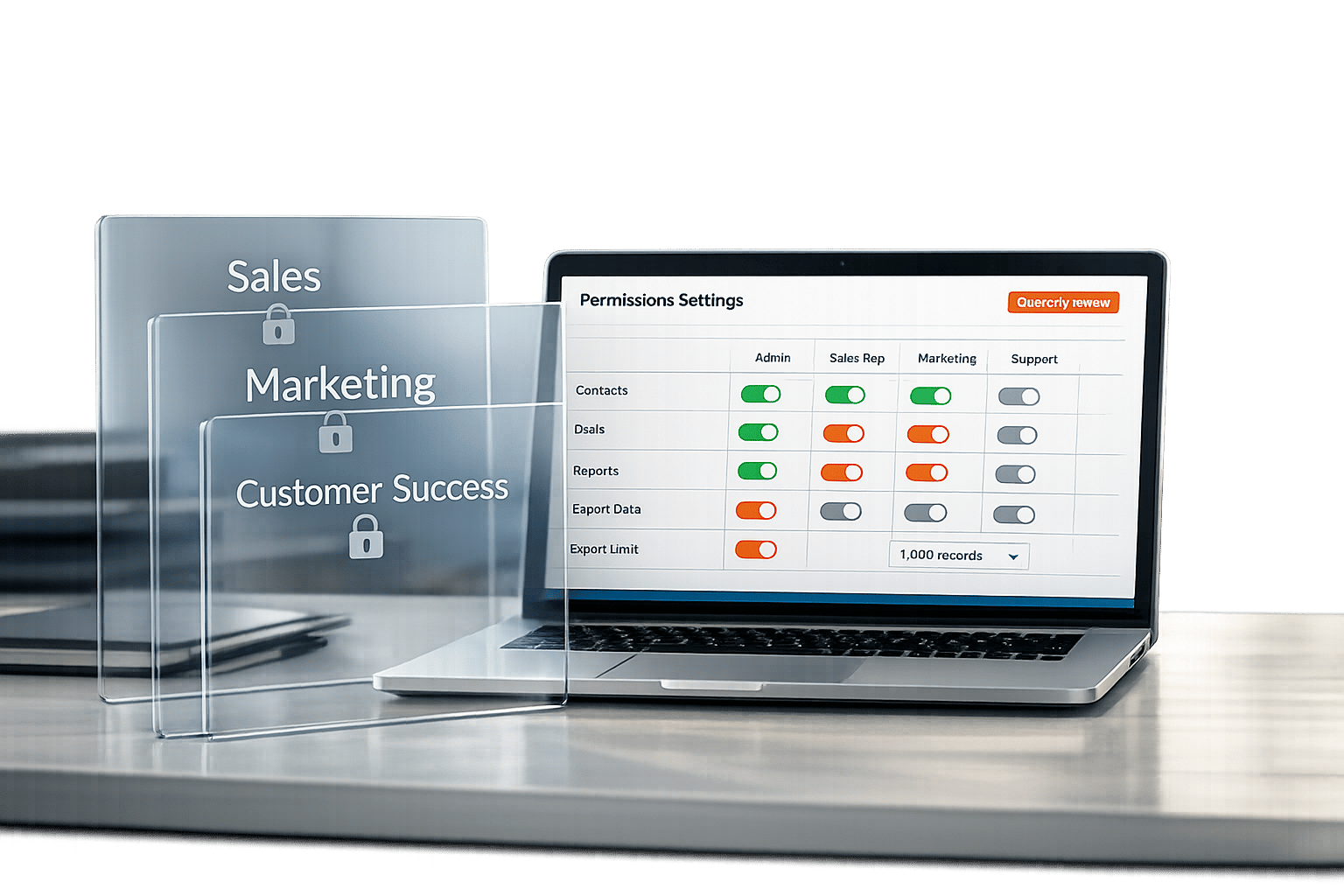
Poorly managed HubSpot permissions can lead to serious problems: accidental data deletions, sensitive information leaks, and pipeline confusion. For startups scaling their go-to-market (GTM) operations, this often stems from rushed setups and over-permissive access. The result? 40–60% of users typically have more access than needed, creating risks for data security and operational reliability.
Key Takeaways
- Role-Based Access Control (RBAC) simplifies permission management by assigning access at the role level (e.g., Sales Rep, Marketing Manager) instead of individual users.
- Permissions directly impact your revenue operations, from pipeline accuracy to automation reliability.
- HubSpot’s 2026 model includes three permission layers: Seat Type, Object-Level Permissions, and Tool-Level Permissions.
- Mismanagement of permissions can lead to costly mistakes like accidental exports or workflow disruptions.
Action Plan
- Audit your current permissions: Identify users with excessive access or inactive accounts.
- Define roles clearly: Start with 6–8 roles tailored to your GTM team (e.g., SDRs, Sales Managers, RevOps).
- Use Permission Sets: Streamline onboarding and updates with reusable templates (Enterprise plans only).
- Limit sensitive access: Restrict high-risk actions like data exports or bulk deletions to a small group.
- Review quarterly: Conduct regular audits to prevent "permission drift" and maintain security.
By starting with zero access and granting only what’s necessary, you can secure your CRM, protect sensitive data, and ensure your GTM strategy scales effectively.
Core Concepts of HubSpot Permissions
HubSpot Permission Types
HubSpot’s permission system is built on three layers, each designed to simplify user management.
The first layer is the Seat Type, which acts as a license. A Core Seat is the basic paid seat that allows users to create or edit data. Sales and Service Hub Seats provide access to advanced tools like Sequences and Playbooks. For users who only need to view dashboards – think executives or stakeholders – View-Only Seats are free and unlimited on Professional and Enterprise tiers.
The second layer is Object-Level Permissions, which determine whether a user can view, edit, create, delete, or merge specific CRM objects such as Contacts, Companies, Deals, Tickets, or Custom Objects. The third layer, Tool-Level Permissions, controls access to specific features like Workflows, Marketing Email, Sequences, or Breeze AI, regardless of record permissions.
Starting in 2026, AI access is managed separately. Admins can configure Breeze AI to summarize contact data while restricting its access to sensitive information like revenue details. For junior staff, AI tools can be set to "Draft Only", ensuring content requires review before use.
These layers work together to customize permissions for different roles within your go-to-market (GTM) teams.
Mapping Permissions to GTM Roles
Ricardo Martinez of CRM by RSM explains:
"The principle is simple: users get access to what they need for their job. Nothing more. In practice, this means starting from zero and adding permissions up, not starting from ‘everything’ and trying to lock things down."
Each GTM role has its own tailored permission profile. For example:
- SDRs and AEs: Typically limited to their own records, along with access to calling tools and meeting links. They’re usually restricted from advanced features like Workflows or Export functions.
- Sales Managers: Need visibility into their team’s pipeline and forecasting tools but shouldn’t be creating properties or editing integrations.
- RevOps: Handles backend operations, including Workflows, Properties, and Integrations.
- Leadership: Requires a clear, read-only view of dashboards and analytics.
On Enterprise plans, Permission Sets simplify this process by bundling configurations into reusable templates. This means new hires, like Sales Reps, can be set up correctly in seconds without manual adjustments.
Key Permission Scopes
Permissions aren’t just about what users can do – they also define what data users can access. HubSpot offers three visibility scopes for CRM records:
| Scope | What the User Sees | Best For |
|---|---|---|
| Owned Only | Records where the user is the assigned owner | SDRs and AEs – prevents lead poaching |
| Team Only | Records owned by anyone on the user’s team | Sales Managers and regional leads |
| Everything | All records in the portal | RevOps, Marketing, and Leadership |
There’s also an Unassigned option for Owned Only or Team Only scopes. When enabled, it allows users to view and claim unowned records, making it perfect for inbound lead queues where SDRs can self-assign new contacts.
Selecting the right scope for each role is critical to maintaining a clean and efficient CRM. For instance, giving a new SDR "Everything" access could result in a cluttered pipeline and compromised data integrity.
Designing a Permission Strategy for GTM Teams
Principles of Effective Permission Design
Creating a structured permission strategy is key to keeping your CRM secure and efficient. The foundation of this strategy lies in the principle of least privilege: grant each role only the access it absolutely needs.
When users have more access than necessary, you risk data breaches, compromised data integrity, and a cluttered pipeline. Adding field-level security – which limits who can view or edit sensitive data like Deal Amount or Close Date – provides an extra layer of protection, even for users with general access to the Deals object.
Simplicity is critical when defining roles. For most B2B GTM teams, 6–8 clearly defined roles are sufficient. Overcomplicating the structure can lead to "permission drift", where inconsistencies creep in, making the system harder to manage.
Step-by-Step Approach to Permission Design
Building a permission framework starts with a thorough audit of your current setup. Review your user list to identify who has Super Admin access – this should be limited to 2–3 people at most. Flag any users who have been inactive for more than 60 days and take note of high-risk permissions, such as bulk delete or data export, that may be too widely distributed.
Next, map out your GTM roles and determine their specific needs at both the object and tool levels. Here’s a practical baseline to consider:
| Role | Contact Visibility | Deal Access | Key Restrictions |
|---|---|---|---|
| Sales Rep | Owned Only | Owned Only | No export, no bulk delete, no workflow edit |
| Sales Manager | Team Only | Team Only | Export team data only; view-only workflows |
| Marketing User | Everything (View) | No Access | Access limited to marketing tools, lists, and email only |
| RevOps | Everything | Everything | Limited edit rights to avoid process disruptions |
| Super Admin | Everything | Everything | Limit to 2–3 people max |
Once roles are defined, use Permission Sets in HubSpot (available on Enterprise plans) to create reusable templates. This approach streamlines onboarding – new Sales Reps, for instance, can be set up in seconds with consistent access settings. It also prevents exceptions from creeping in over time. After setting up roles, test them with real or test user accounts to ensure they align with your design. This step ensures everything functions as intended before rolling it out across the team.
When to Formalize Permissions
Early-stage teams often delay formal permission design because members juggle multiple responsibilities. While this is understandable, it can lead to issues as the team and system grow. A good rule of thumb is to formalize permissions once your HubSpot portal reaches around 30 users or when a significant operational event occurs.
Key moments to formalize permissions include a GTM stack audit, launching a CRM automation project, or restructuring the team after securing funding. These events naturally shift access needs, making them ideal times to establish a solid framework rather than reacting to problems later.
"If your team has more than five people using HubSpot, your permissions setup is either protecting your revenue or quietly draining it." – On The Fuze
Once your framework is ready, document everything on a single reference page. Include role definitions, visibility scopes, the process for requesting temporary access, and a schedule for quarterly reviews. This document becomes your go-to resource as your team grows, roles change, or questions arise about who can access what.
Configuring HubSpot Roles, Users, and Teams
Structuring Teams in HubSpot
HubSpot teams are the backbone of managing user data access. If you’re on an Enterprise plan, you can create hierarchical team structures that mirror your go-to-market setup. For example, a "Global Sales" team can include sub-teams like "North America" and "EMEA", which can then break down further into groups such as "East Coast" or "West Coast".
This setup offers a key advantage: roll-up reporting. A manager assigned to a parent team automatically gains visibility into all child team records and activities without needing individual access. At the same time, reps on regional teams, like the East Coast, won’t see the work of their peers on the West Coast. This prevents lead poaching while ensuring managers have full oversight.
For content partitioning, this structure also helps streamline marketing workflows. You can assign assets like emails, forms, lists, and dashboards to specific teams. This ensures that, for example, a demand generation team focused on enterprise campaigns doesn’t get bogged down with SMB-related assets, and vice versa.
Once your teams are structured, the next step is to align roles and permissions with this setup.
Configuring Roles and Permissions
Setting up roles and permissions in HubSpot is a step-by-step process. Start by navigating to Settings > Users & Teams, and then follow this sequence:
| Step | Action | Where in HubSpot |
|---|---|---|
| 1 | Go to Settings > Users & Teams | Settings > Users & Teams |
| 2 | Create a Permission Set (Enterprise) | Permission Sets tab > Create Permission Set |
| 3 | Assign seat type | Users tab > Select User > Assign Seat |
| 4 | Set object permissions | Edit Permissions > CRM > CRM Objects |
| 5 | Define record scope | CRM Objects > Owned / Team / All |
| 6 | Configure tool access | Toggle Marketing, Sales, or Service switches |
| 7 | Apply field-level security | Settings > Properties > Select Object > Manage Access |
If you’re on a Starter or Professional plan, permissions must be configured manually for each user. On Enterprise, you can use Permission Sets, which are reusable templates that apply consistent access rules to entire role groups. This makes updates easier – when a role’s responsibilities change, you just update the Permission Set, and it automatically applies to all users assigned to it.
"Complexity is the enemy of maintainability. Six to eight roles covers most companies well." – Ricardo Martinez, CRM Specialist, RSM
One thing to note: users must log out and back in for any permission changes to take effect. Make sure to communicate this to your team before rolling out updates to avoid confusion.
With roles in place, it’s important to regularly update permissions to reflect changes in responsibilities.
Managing Permission Changes Over Time
As team roles evolve, managing permissions systematically is crucial. Stick to role-based access control (RBAC) principles: when someone moves from a rep role to a manager role, don’t just add permissions on top of their existing ones. Instead, assign them to the appropriate Permission Set and remove the old one. Overlapping permissions can lead to "permission drift", which complicates system management over time.
Offboarding is another critical process. When deactivating a user, HubSpot will prompt you to reassign their owned records – like deals, contacts, and tasks. Completing this step ensures no records get stuck in the pipeline. Additionally, if the user had active sequences running, those sequences will stop immediately upon deactivation, so make sure to review and re-enroll affected contacts under an active user’s account.
For temporary elevated access, such as granting a RevOps analyst deal-editing rights for a one-week data cleanup, document the reason, schedule a reminder to revoke access, and treat it as an exception rather than a regular practice. Temporary permissions that aren’t revoked often show up as red flags in audits.
Recommended Permission Setups for GTM Roles
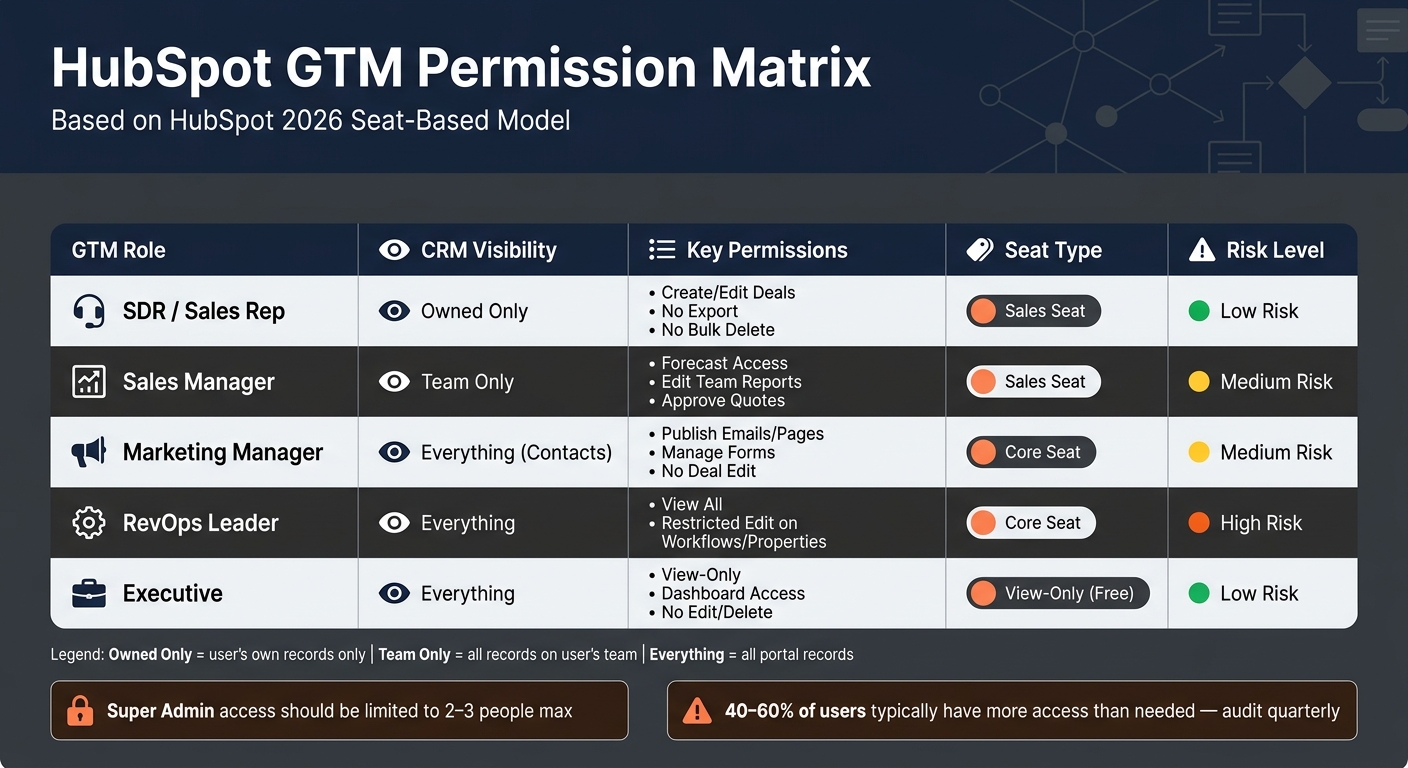
HubSpot GTM Permission Matrix: Roles, Access & Seat Types
Permission Setups by Role
Once your team structure is in place, the next step is determining what each role should be able to access and modify. HubSpot audits often reveal that excessive access is a common issue, leading to data integrity risks.
Here’s a breakdown of common GTM roles and their recommended permissions based on the 2026 seat-based model:
| GTM Role | CRM Visibility | Key Permissions | Seat Type |
|---|---|---|---|
| SDR / Sales Rep | Owned Only | Create/Edit Deals; No Export; No Bulk Delete | Sales Seat |
| Sales Manager | Team Only | Forecast Access; Edit Team Reports; Approve Quotes | Sales Seat |
| Marketing Manager | Everything (Contacts) | Publish Emails/Pages; Manage Forms; No Deal Edit | Core Seat |
| RevOps Leader | Everything | View All; Restricted Edit on Workflows/Properties | Core Seat |
| Executive | Everything | View-Only; Dashboard Access; No Edit/Delete | View-Only (Free) |
For SDRs and AEs, limiting visibility to "Owned Only" for Deals and Contacts is a smart move under the 2026 seat-based model. This ensures they only access what’s directly relevant to them. Marketing Managers, on the other hand, benefit from broad contact visibility for segmentation purposes, but they should not have access to edit deals to prevent accidental changes to pipeline data. Meanwhile, RevOps leaders need full visibility for auditing purposes, but their edit permissions on workflows and properties should be tightly controlled to avoid disruptions in automation.
The next step is deciding whether each role requires read-only or edit access to further fine-tune permissions.
Read-Only vs. Edit Rights
Choosing between read-only and edit access depends on whether the role needs to modify data or simply view it. Executives, business analysts, and external consultants typically don’t need to edit records. Assigning them View-Only seats (which are free and unlimited on Professional and Enterprise tiers) allows full access to dashboards and reports without risking data integrity.
For roles like Marketing Ops, it’s best to grant "Everything" visibility for viewing but limit edit rights to owned records. This allows them to build accurate lists and segments without altering contact data managed by the sales team.
Across all roles, Bulk Delete and Export permissions should be restricted to a small group – usually RevOps or senior operations staff. A single accidental bulk delete could erase months of pipeline data.
Building a Permission Matrix
Creating a permission matrix simplifies onboarding, role transitions, and ongoing management. This matrix serves as a centralized reference, mapping each role to its specific access levels, tool permissions, and seat types.
When building your matrix, focus on three key layers:
- CRM object access: Define what records each role can view and edit.
- Tool permissions: Specify which HubSpot tools they can use.
- Admin rights: Determine who can export, bulk delete, or edit properties.
A shared spreadsheet or an internal wiki table works well for this purpose. Keep the matrix updated quarterly since role responsibilities can evolve over time. An outdated permission matrix can be almost as risky as having no matrix at all.
Governing and Scaling Permissions as GTM Teams Grow
Managing permissions effectively is a critical step as your GTM team expands. Robust governance ensures your HubSpot access controls grow alongside your team without compromising security or efficiency.
Permission Governance Best Practices
Even the best permission setups can falter as teams grow. One common pitfall is permission drift – when temporary elevated access granted for specific projects isn’t revoked, leaving your portal more vulnerable.
The fix? A quick, quarterly 30-minute audit. During this review, focus on a few key areas:
- Keep your Super Admin count between 3 and 5.
- Flag users who haven’t logged in for over 60 days.
- Ensure role assignments still align with current job titles.
HubSpot’s Audit Log makes this process easier by tracking key changes like logins, record deletions, and workflow edits. This log helps you catch unusual activity early, preventing minor issues from escalating.
"Being a Super Admin is like having the ‘Master Key’ to the entire building. They can see everything, change billing, and even delete the entire portal." – Adam Statti, RevOps Specialist
Another helpful practice? Create a one-page reference guide that maps each job title to its corresponding HubSpot Permission Set. Include instructions for requesting temporary access exceptions. This keeps onboarding smooth and sets a clear standard for everyone. Regular audits like these lay the groundwork for scalable access management.
Scaling Permissions for Larger GTM Structures
As your team grows, managing permissions individually can become a bottleneck. That’s where bulk permissions management comes into play. HubSpot’s Permission Sets allow you to make updates at scale – any changes to a Permission Set automatically apply to all assigned users. With up to 100 Permission Sets available per account, there’s plenty of flexibility.
When launching new teams, save time by cloning an existing Permission Set and tweaking only what’s necessary. This minimizes errors and speeds up the process. Additionally, HubSpot’s parent-child team hierarchy simplifies data access. For instance, a "Sales" parent team with "SMB" and "Enterprise" child teams allows managers to view combined data without needing manual overrides.
Connecting Permissions to Revenue Infrastructure
Permissions don’t just control access – they’re a cornerstone of your GTM infrastructure. They directly affect the reliability of automation, reporting, and outbound systems.
This principle extends to third-party integrations. When connecting external tools to HubSpot using Private Apps, apply scoped permissions. For example, a pipeline analytics tool might only need crm.objects.deals.read access rather than full portal permissions.
For companies transitioning from founder-led sales to a structured GTM motion, properly configured permissions are essential for stability. Misconfigured access can lead to silent failures in critical automations like lead routing or multi-channel outbound systems. If you’re scaling and need expertise, GTM Engineering Services specializes in designing secure, scalable revenue infrastructures.
Conclusion: Building Secure and Scalable GTM Operations
Secure and scalable GTM operations hinge on thoughtful HubSpot permission strategies. Overlooking permissions invites costly mistakes – a rep might delete a critical batch of contacts, someone could unintentionally alter key deal metrics, or an offboarded employee’s records might remain unassigned for weeks. These issues share a common thread: permissions treated as an afterthought. The solution? Start with zero access for every user and grant only what their role demands.
By mapping roles carefully and managing permission updates over time, you can enhance both security and operational reliability. Aim to establish six to eight functional roles, restrict Super Admin access to just two or three highly trusted individuals, and conduct quarterly audits to maintain clean, dependable CRM data. HubSpot’s 2026 seat-based model makes this even more practical, offering unlimited free View-Only seats so executives and partners can stay informed without additional licensing costs.
A solid permission strategy safeguards revenue forecasts, ensures strict AI oversight, and keeps automation running smoothly. These practices lay the groundwork for a dependable, scalable GTM stack – one built to support automated revenue systems and long-term growth.
FAQs
What’s the fastest way to audit who has too much access?
Reviewing your user list every quarter is one of the fastest ways to ensure access controls are up to date. Focus on these three key areas:
- Super Admin Roles: Double-check that all Super Admin assignments are still necessary and justified.
- Inactive Users: Look for users who haven’t been active for over 60 days. Decide whether to deactivate their accounts or investigate further.
- Permission Exceptions: Review any active permission overrides to make sure they still match current job responsibilities.
For growing GTM teams, automating this process through CRM workflows can save time and reduce human error.
Which seat type should each GTM role use in HubSpot?
To assign HubSpot seat types effectively, think about what each role in your team truly needs – whether it’s access to editing tools, advanced functionalities, or simply viewing data. HubSpot provides three main seat types:
- View-Only: Ideal for executives or partners who only need to review data without making changes.
- Core: Best for those handling CRM records, managing workflows, or creating emails.
- Hub-Specific (Sales/Service): Designed for advanced users who rely on tools like Sequences or Playbooks.
GTM Engineering Services recommends mapping these seat types to predefined roles, such as Sales Reps or Managers, to ensure secure and efficient access for everyone.
How do I prevent permission drift as teams scale?
As your go-to-market team expands, keeping permissions under control can get complicated. The solution? Shift from managing individual user permissions to implementing role-based access control (RBAC). This approach organizes access around specific functional roles, making it easier to maintain consistency. HubSpot’s permission sets are a great tool for setting this up effectively.
To stay on top of things, schedule quarterly audits. These should include reviewing Super Admins, removing inactive users, and reassessing any temporary access that’s no longer needed. Additionally, document your permission strategy and clearly define roles in a central location. This ensures everyone stays aligned and keeps accountability intact as your team continues to grow.