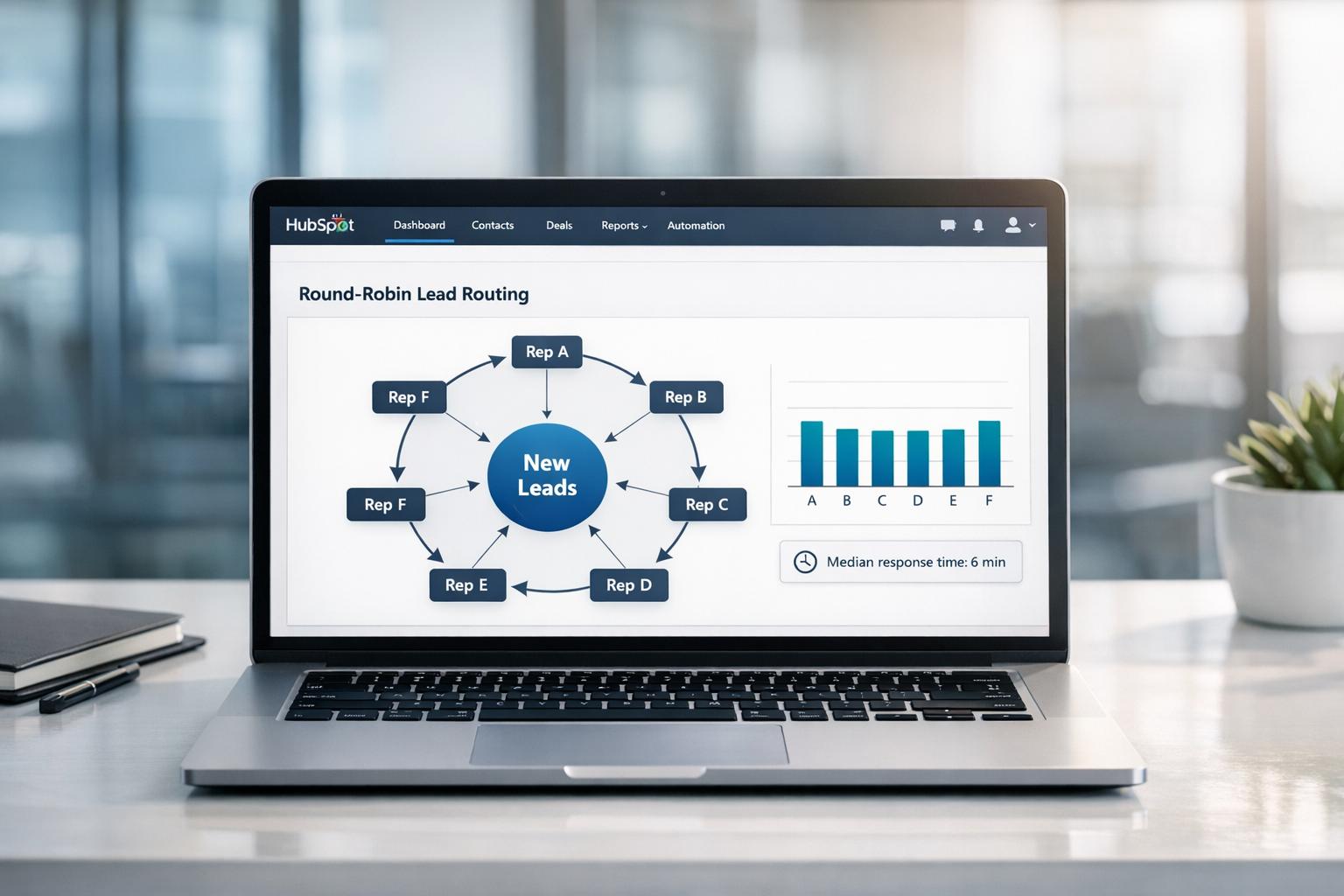
Manual lead assignment wastes time and creates inefficiencies. Once your sales team grows beyond five reps, spreadsheets fail, leads get missed, and cherry-picking undermines fairness. HubSpot‘s round-robin lead routing automates this process, ensuring leads are distributed evenly and quickly – reducing response times and boosting conversions.
Key Takeaways:
- Faster response times: Automated routing can cut response times by up to 90%, with conversions increasing 8x when leads are contacted within five minutes.
- Balanced workloads: Reps receive leads in a fair rotation, preventing overload and ensuring newer reps get opportunities.
- Scalable systems: Automation eliminates bottlenecks, making your lead management process efficient as your team grows.
Setup Essentials:
- HubSpot Requirements: Use Sales Hub or Service Hub at the Professional or Enterprise level.
- Clean CRM Data: Ensure fields like territory, industry, and lead source are accurate for proper routing.
- Workflow Configuration: Use the "Rotate record to owner" action to assign leads automatically based on your criteria.
Automating lead routing isn’t just about saving time – it’s about building a system that ensures every lead gets the attention it needs, without delays or bias.
What Is Round-Robin Lead Routing in HubSpot

Round-robin lead routing is an automated way to assign incoming leads to sales reps in a rotating sequence – think of it like dealing cards in a game. HubSpot keeps track of how many leads each rep has been assigned during a rotation and ensures the next lead goes to the rep with the fewest assignments. This is managed through the "Rotate record to owner" action within HubSpot Workflows.
Instead of managers manually distributing leads, this system kicks in as soon as a prospect converts. It uses criteria like "Contact owner is unknown" or filters based on lead source, lifecycle stage, or territory. For growing B2B startups with teams of five or more reps, round-robin routing ensures top performers aren’t overwhelmed while newer reps still get enough chances to succeed. It also eliminates cherry-picking, fostering trust and boosting team morale. The result? A consistent and efficient process with measurable results.
Benefits of Round-Robin Routing
Automating lead assignment offers clear advantages. For one, it ensures balanced workloads. By using a mathematical approach instead of subjective decisions, round-robin routing prevents situations where some reps are overloaded while others are underutilized. This balance is key for startups aiming to showcase scalable growth.
Faster response times are another major perk. Automated routing can cut lead response times by up to 90%, and sales teams that respond within five minutes see conversion rates jump by a factor of eight.
Better team morale also comes into play. Alex Umbhau, Senior Operations Strategist at New Breed, explains:
"Routing isn’t just a RevOps concern – it’s a team morale driver".
When reps trust the system to distribute leads fairly, conflicts decrease, and collaboration improves.
Requirements for Round-Robin Routing in HubSpot
To use HubSpot’s native round-robin feature, you’ll need either the Sales Hub or Service Hub at the Professional or Enterprise level. The "Rotate record to owner" workflow isn’t available on Starter or Free plans.
Accurate CRM data is critical. The workflow depends on properties like territory, industry, and lead source to route leads correctly. Make sure you’ve clearly defined territories and set up custom properties for conditional routing to work smoothly.
If you’re planning to use availability-based routing, ensure all sales reps have their calendars synced with HubSpot. This way, the system can skip reps who are on PTO or unavailable, ensuring no leads fall through the cracks.
Preparing Your CRM for Lead Routing
A well-organized CRM is the backbone of any effective lead routing system. Poor data quality isn’t just an inconvenience – it costs enterprises over $4 million annually. If your contact records are missing critical details like industry, company size, or lifecycle stage, your round-robin system won’t work as intended, sending leads to the wrong reps. Building a solid data foundation ensures your enrichment processes deliver leads to the right people at the right time.
Checking Data Quality
Start with a thorough audit of the contact properties you’ll use for routing. In HubSpot, check that fields like Region, Product Interest, Lifecycle Stage, and Company Size are properly set up and consistent across your database. These fields are the backbone of your lead routing logic, so any inconsistencies can throw the system off.
Next, clean up your database. Merge duplicate records, fix errors, and fill in missing information. If more than 10% of your leads require manual reassignment, it’s time to update your CRM data. Use HubSpot’s enrichment feature, which accesses a database of over 20 million businesses, to automatically update company and industry details.
When creating forms, keep them concise but ensure they capture key routing data like name, organization, location, and product interest. Overly long forms risk abandonment. To keep junk leads out of your workflows, set up spam filters using "If/Then" branches.
Setting Up Lead Enrichment Workflows
Even with clean forms, some leads will inevitably come in with missing information. Use workflows to check for essential fields – such as industry or company size – before triggering the "Rotate record to owner" action. If critical data is absent, set up an enrichment step or a fallback rule that temporarily places the lead in a general queue until the data is updated.
For more detailed enrichment, integrate tools like Clearbit or ZoomInfo. These platforms can automatically fill in firmographic details like company size and revenue. For instance, in 2025, Espresso Translations cut their response time from 4.2 hours to just 37 minutes and increased conversion rates by 23% after implementing automated routing with enriched data. Director Nicola Leiper’s team used structured lead allocation to resolve territory conflicts and ensure leads were matched correctly from the outset.
To further refine your routing, create Active Lists in HubSpot. These lists can categorize leads based on criteria like score thresholds or product interest signals. By combining firmographics, behavioral data, and intent signals, your round-robin system can distribute leads based on their fit, not just availability. This ensures every lead gets the attention it deserves.
How to Configure Round-Robin Lead Routing in HubSpot
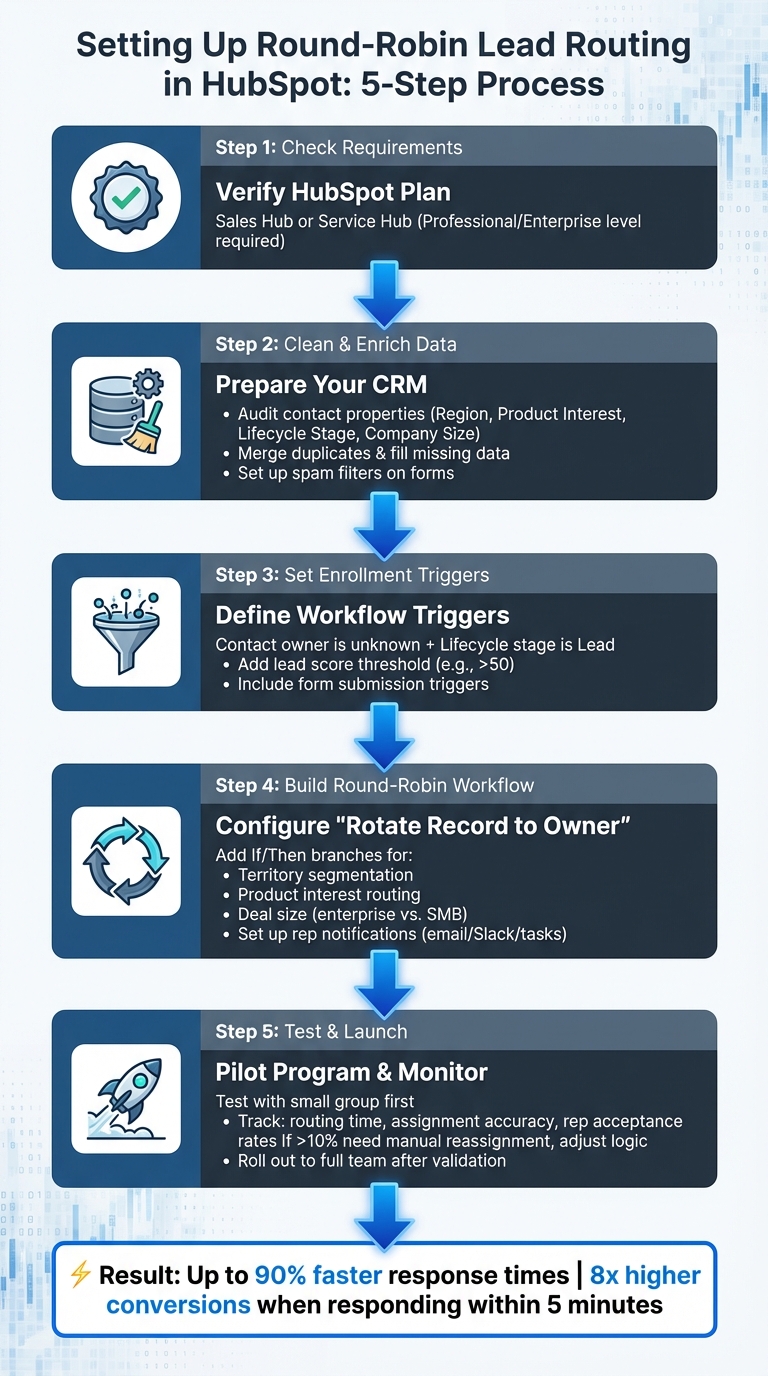
HubSpot Round-Robin Lead Routing Setup Guide: 5-Step Implementation Process
To set up round-robin lead routing in HubSpot, you’ll need to define enrollment triggers, establish assignment logic, and thoroughly test your workflow before launching it. Make sure your HubSpot plan supports this feature.
Setting Up Enrollment Triggers
Start by ensuring your CRM data is clean and enriched. Then, define clear triggers for workflow enrollment. A common setup involves using "Contact owner is unknown" as the trigger, combined with filters like "Lifecycle stage is Lead" or a lead score above a specific threshold (e.g., greater than 50). This ensures only unassigned, qualified leads enter the workflow. Alternatively, you can use specific form submissions, such as a "Request a Demo" form, to trigger enrollment.
If you rely on third-party enrichment tools like Clearbit or ZoomInfo, add a brief delay at the start of the workflow. This gives these tools time to populate firmographic data before routing begins. HubSpot’s Breeze AI can simplify this process by letting you describe your criteria in plain language (e.g., "leads who submitted the Contact Us form and work at companies with more than 50 employees"), then automatically generating the corresponding filters.
Building the Round-Robin Workflow
Once you’ve set your triggers, add the "Rotate record to owner" action to the workflow. HubSpot will then assign new leads to the salesperson in your rotation list with the fewest total contacts, ensuring an even workload. You can choose to rotate leads among specific users or assign them to an entire HubSpot team.
For more detailed routing needs, use "If/Then" branches to segment leads by factors like territory, product interest, or deal size. For instance, enterprise leads (e.g., companies with over 500 employees) can be routed to senior account executives, while smaller leads can go to a different rotation pool. After assigning leads, include notification steps – such as CRM tasks, emails, or Slack messages – to alert the assigned rep. Automating this process can reduce lead response times by up to 90%.
"Automated routing ensures that the right lead is automatically transferred to the right team without an opportunity for human bias and without wasting time with manual reassignment."
- Caspar Matthews, Director, Electcomm Group Electrical & Data
Once your workflow is set up, the next step is to test it thoroughly.
Testing and Activating Your Workflow
Before launching your workflow, map out all routing paths to identify potential edge cases, like leads with multiple product interests or reps who are at capacity. Use the data quality and enrichment steps mentioned earlier to create realistic testing scenarios. Simulate test contacts to ensure they move through the workflow as expected. Make sure "If/Then" branches trigger correctly and that leads are assigned properly during rotation.
Start with a pilot program involving a small group or a low-volume lead source. During this phase, monitor key metrics like average routing time, assignment accuracy, and rep acceptance rates. If more than 10% of leads require manual reassignment, revisit your enrollment triggers or branching logic. Once you’re confident the workflow performs reliably, roll it out to your entire team. Over time, refine scoring thresholds and capacity limits to keep the system running smoothly.
Advanced Automation for Lead Routing
Once your basic round-robin workflow is in place, it’s time to refine it with advanced automation. These adjustments help you handle SLA breaches and account for rep availability, ensuring no lead slips through the cracks.
Adding SLA-Based Escalation Rules
To keep your team accountable, include a "Delay and Verify" step after the "Rotate record to owner" action. Set a 2-hour delay, then use an "If/Then" branch to check if the "Lead Status" is still marked as "New" or if no sales activity has occurred within that window.
If the lead remains untouched, it signals an SLA breach. At this point, the workflow can trigger several actions: notify a manager via Slack or email, create a high-priority task for the assigned rep, or re-assign the lead to another available team member. To accurately measure "Speed to Lead", implement a "Set property value" action to log an "SLA Start Time" property at the moment of assignment.
"In many cases, automated leads can produce responses in less than two hours, which is the difference between winning a contract worth $50,000 and losing it to a competitor."
- Caspar Matthews, Director, Electcomm Group Electrical & Data
Removing Unavailable Reps from Rotation
Instead of assigning leads directly to individual reps, route them to a HubSpot Team. This approach simplifies availability management – just remove a rep from the team in your "Users & Teams" settings when they’re unavailable, and they’ll be excluded from the rotation automatically.
For even better efficiency, integrate calendar data and monitor active pipelines. This allows you to skip reps who are at capacity and focus on those who are ready to engage. The result? Faster responses and fewer missed opportunities.
Tracking and Improving Lead Routing Performance
Keeping a close eye on your round-robin workflow helps you spot bottlenecks, ensure fairness, and boost conversions.
Reviewing Workflow Performance
Focus on tracking four key metrics:
- Average routing time: This should be nearly instant if automation is in place.
- Accuracy rate: The percentage of leads correctly assigned based on your criteria.
- Rep acceptance rates: How quickly reps engage with their assigned leads.
- SLA compliance: Whether your team meets agreed response timeframes.
To dig deeper, audit your HubSpot workflow history. Look for delayed leads, missing data, or recurring SLA breaches. Caspar Matthews, Director at Electcomm Group Electrical & Data, emphasizes the importance of regular analytics reviews:
"Your analytics should be set up to measure KPIs such as conversion percentage and average response time. Measure in 30- to 60-day cycles to experiment with different routing rules and improve upon them".
Once you’ve gathered performance insights, fine-tune your routing workflows to adapt to your team’s evolving needs.
Updating Workflows for Team Changes
Team structures often shift – whether it’s due to new hires, promotions, or territory adjustments. When this happens, update your workflow to reflect current capacity. For instance, if you’re using HubSpot Teams, you can easily add or remove reps in the team settings without overhauling the entire workflow. For new reps, consider using weighted distribution to limit their lead volume while they ramp up.
Conduct quarterly audits to ensure your routing rules align with changes like new product launches or territory realignments. Before making updates, map out your current lead flows to spot inefficiencies, such as duplicate outreach or clunky handoffs. For example, if a lead’s domain already exists in your CRM, route it to the assigned account manager to maintain continuity and avoid confusion.
Regular adjustments to these workflows ensure your routing system stays in sync with your evolving go-to-market strategy.
Conclusion
HubSpot’s round-robin routing streamlines lead assignment, cutting through delays and ensuring leads are distributed in seconds. Quick responses matter – sales teams that follow up within five minutes see conversion rates soar, achieving results up to 8 times higher.
To make the most of this system, start with clean data and clearly defined triggers. This not only guarantees fair lead distribution but also helps maintain a motivated team. For instance, Espresso Translations used automated routing to slash their response times from 4.2 hours to just 37 minutes, leading to a 23% increase in conversions.
Automation isn’t just helpful as you grow – it’s the backbone of scalable success. As Alex Umbhau puts it:
"Lead routing isn’t just a process to worry about once you’ve scaled – it’s a foundational system that enables scale in the first place".
Achieving long-term results requires consistent monitoring, adapting to team shifts, and making quarterly updates. With robust data and proper enrichment, round-robin routing transforms your outbound efforts into a reliable, high-performing pipeline.
FAQs
How do I route leads by territory and still keep round-robin fair?
To manage lead routing by territory while keeping things fair, HubSpot workflows can be your go-to tool. Here’s how it works: create a workflow that activates when a lead enters the system. This workflow should first check the lead’s territory and then assign it to a sales rep using round-robin logic. HubSpot’s "Rotate Record to Owner" action is perfect for ensuring leads are distributed evenly within each territory.
For more intricate setups, it’s crucial to establish clear criteria. Consider factors like the lead’s territory, how well they match your Ideal Customer Profile (ICP), and the current workload of your team. This approach helps ensure leads are assigned fairly and efficiently.
What happens if a lead is missing data required for routing?
If a lead in HubSpot is missing key data for proper routing, you can create workflows to address this gap. Set up the system to either assign such leads to a default owner or send an alert for manual review. This approach ensures every lead is accounted for, keeping your lead management process running smoothly and efficiently.
How do I handle reps on PTO or at capacity in the rotation?
To handle reps who are on PTO or maxed out in HubSpot’s round-robin setup, you can use the time-off or capacity settings. By setting specific time-off dates, you can temporarily remove reps from receiving leads. Once they return or have bandwidth, simply reactivate them in the rotation. This keeps lead distribution fair and ensures assignments only go to reps who are ready to engage.